Why Your Computer Takes Forever to Start (And How to Fix It)
We’ve all been there: you press the power button on your laptop, grab a coffee, come back, and you’re still staring at a spinning loading wheel. It feels like your computer is waking up from a deep, reluctant coma.
If your PC or laptop feels sluggish right out of the gate, the culprit usually isn't old age—it's startup bloat. Having too many programs set to launch the second your operating system boots up is one of the biggest performance killers.
Here is why you need to put your startup apps on a diet, and how doing so can instantly revive your machine.
The Core Problem: The "Traffic Jam" Effect
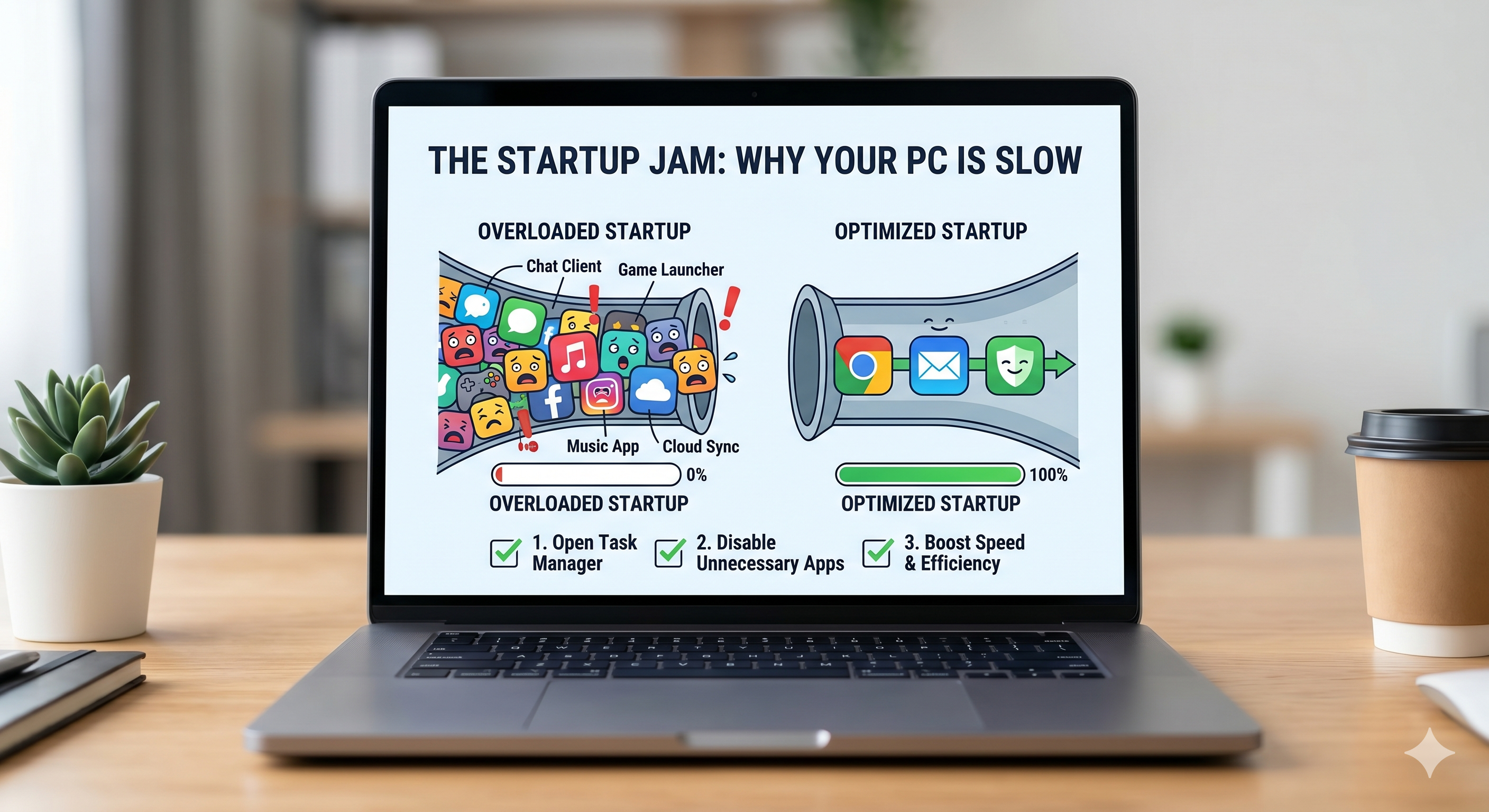
Think of your computer’s boot-up process like a highway. When you turn on your machine, Windows or macOS has to load core essential files just to get the desktop running.
Now, imagine if 15 other apps—like Spotify, Discord, Steam, Adobe Creative Cloud, and three different cloud storage syncers—all try to push their way onto that same highway at the exact same millisecond.
Result? A total digital traffic jam.
1. It Eats Up Your RAM and CPU
Every program that opens needs a slice of your computer's short-term memory (RAM) and central processing unit (CPU). When dozens of apps launch at startup, they fight for these limited resources. This causes your system utilization to spike to 100% immediately, leading to freezing, stuttering, and agonizingly slow response times.
2. They Become "Ghost" Resource Hogs
The worst part about startup programs is that they don’t just slow down the boot process; they stay open in the background. Even if you click the "X" to close them, many just retreat to your system tray. They continue to drain your battery, consume memory, and slow down whatever you are actually trying to work on.
3. It Ruins Your Hardware's Lifespan
While modern Solid State Drives (SSDs) are incredibly fast, forcing them to read and write data for twenty different apps simultaneously every time you turn on your PC puts unnecessary strain on your hardware.
The Golden Rule of Startup Apps
If you don't need it open within the first 10 seconds of turning on your computer, it shouldn't be in your startup list.
You don't need to delete these programs entirely. Preventing them from launching on startup just means they will wait patiently until you manually double-click their icon to open them.
How to Clean Up Your Startup List (In 60 Seconds)
Ready to give your computer a serious speed boost? Here is how to trim the fat on both Windows and Mac.
For Windows Users (10 & 11)
- Press
Ctrl + Shift + Escto open the Task Manager. - Click on the Startup apps tab (it looks like a small tachometer or speedometer icon on Windows 11).
- Look at the Startup impact column. This tells you which apps are the biggest troublemakers (High, Medium, Low).
- Right-click any app you don't need immediately (e.g., game launchers, music apps) and select Disable.
For Mac Users
- Open System Settings (click the Apple logo in the top left).
- Go to General > Login Items.
- Under the "Open at Login" list, select the apps you want to remove and click the minus (-) button.
- You can also toggle off apps allowed to run in the background below that list.
What is Safe to Disable?
If you aren't sure what to turn off, use this quick cheat sheet:Safe to Disable (Turn Off)Leave Alone (Keep On)Video Game Launchers (Steam, Epic, EA)Antivirus/Security SoftwareMusic & Chat Apps (Spotify, Discord, Skype)Audio Drivers (Realtek, Waves)Cloud Storage if you don't sync constantly (Dropbox, OneDrive)Mouse/Keyboard Software (if you use custom macros)Browser helpers (Edge/Chrome background launchers)Windows/macOS system files
Feeling Overwhelmed? Let the Experts Handle It
If looking at your Task Manager feels like reading a foreign language, or if you’ve disabled startup programs and your computer is still running at a snail's pace, it might be time for a professional deep clean.
That’s where we come in. At Good As New Computer Repair Specialists, we don't just stop at startup apps. We can give your PC or laptop a complete digital overhaul, including:
- Full System Optimization: Stripping away hidden bloatware, tracking cookies, and resource hogs you didn't even know were there.
- Hardware Diagnostics: Checking if a failing hard drive or lack of RAM is the real reason your machine is struggling.
- Malware & Spyware Removal: Ensuring your slow boot times aren't being caused by malicious background processes.
- SSD Upgrades: Transforming your old, sluggish spinning hard drive into a lightning-fast Solid State Drive so your computer boots up in seconds.
Don't waste your time staring at a loading screen. Bring your device to Good As New Computer Repair Specialists, and let us make your computer feel exactly like the day you bought it!
Call 07706049460 / Visit 30 Walnut Grove Southampton SO16 4NJ Book on line https://www.goodasnewpcrepairs.co.uk/