
Why Your Computer Sounds Like a Jet Engine (And How Dust Is Secretly Cooking Your CPU)
We’ve all been there: you’re in the middle of a intense gaming session, working on a tight deadline, or rendering a video, and suddenly your PC sounds like a jet engine preparing for takeoff. Your laptop feels hot enough to fry an egg, or worse—your screen freezes and shuts down completely.
At Good As New Computer Repair Specialists, the most common hidden culprit behind sluggish performance and sudden hardware failure in desktops, laptops, and MacBooks is surprisingly simple: dust buildup.
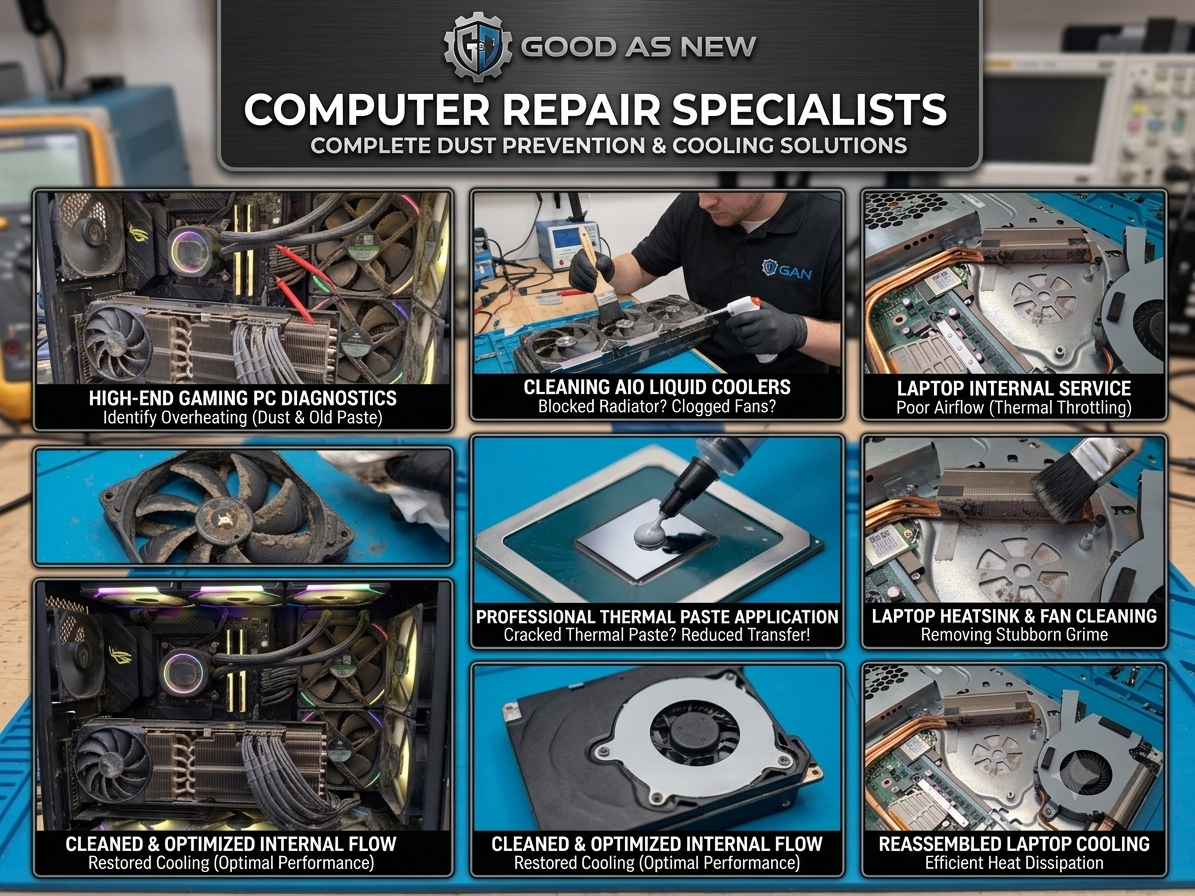
High-End Gaming & AIO Liquid Coolers: Why Cleaning Matters Most
If you run a high-end gaming desktop equipped with an All-In-One (AIO) Liquid Cooler, dust is your system's worst enemy.
High-performance gaming CPUs generate immense heat under heavy loads. AIO coolers rely on a radiator packed with hundreds of ultra-thin aluminum fins paired with high-static pressure fans to dissipate that heat.
- The Radiator "Dust Wall": Over time, intake fans pack dust tightly against the radiator fins, creating an airtight layer of grime. Cool air can no longer pass through to chill the liquid running inside the tubes.
- Liquid Temperature Spikes: When air can't flow through the radiator, the liquid coolant inside stays hot. This forces the pump to work overtime, dramatically shortening the lifespan of your expensive cooler.
- Thermal Throttling in Games: Even with a premium liquid cooler, a clogged radiator will cause your high-end CPU to hit thermal limits ($90^\circ\text{C}-100^\circ\text{C}$), resulting in sudden frame rate drops, stuttering, and system crashes mid-game.
The Hidden Danger: Baking Your Thermal Paste
Whether you have a standard air cooler or a liquid AIO setup, there is a critical component between your CPU and cooling block: thermal paste. This soft compound fills microscopic gaps between the chip and cooler so heat can transfer away quickly.
When dust blocks your cooling system, trapped heat turns your chassis into a mini-oven, triggering a dangerous chain reaction:
- Paste Dries Up and Cracks: Extreme temperatures bake the liquid compounds out of the paste, turning it into a dry, chalky crust.
- Heat Barrier Forms: Dry thermal paste loses its conductivity. Instead of transferring heat away from the processor, it acts like an insulator, trapping heat directly on the silicon chip.
- Permanent Component Damage: Once thermal paste dries out, even a running fan or liquid pump can't cool the system. Running a CPU under these conditions leads to warped solder joints, motherboard failures, and permanent chip degradation.
Red Flags Your Computer Needs an Internal Clean
If your computer or gaming rig shows any of the following warning signs, dust buildup and dried paste are likely cooking your system:
- Loud, Constant Fan Noise: Your fans ramp up to 100% speed even during basic web browsing or idle tasks.
- High Idle Temperatures: Monitoring software shows your CPU idling above $50^\circ\text{C}-60^\circ\text{C}$ without any games running.
- Random Shutdowns or Restarts: The system suddenly cuts power during heavy loads to protect the CPU from thermal death.
- Unexplained Lag & In-Game Stutter: Games that used to run smoothly suddenly drop frames after 10–15 minutes of play.
4 Simple Habits to Prevent Overheating
While every computer naturally draws in dust over time, these simple habits help protect your hardware:
- Keep Laptops Off Soft Surfaces: Never use a laptop on a bed, couch, or carpet. Fabrics block air vents and push lint straight into the cooling assembly.
- Elevate Desktop & Gaming Towers: Avoid keeping PC cases directly on carpeted floors where dust, carpet fibers, and pet hair gather fastest.
- Keep Workspaces Clean: Wiping down your desk area regularly reduces the ambient dust pulled into intake fans and radiator grills.
- Schedule Annual Servicing: Just like a car needs fresh oil, computers—especially high-end liquid-cooled rigs—need an internal cleaning and fresh thermal paste every 12–18 months.
Let the Experts Help at Good As New
Blowing compressed air into your vents from the outside often pushes dust clumps deeper into the fan blades, wedges them tighter into heatsinks, or damages delicate fan bearings.
Safe maintenance requires opening the chassis, grounding against static electricity, clearing radiator fins and fan assemblies, safely removing old baked-on paste, and applying fresh high-performance thermal compound.
If your Mac, PC, or gaming rig is running hot, loud, or slow, bring it into Good As New Computer Repair Specialists. We’ll clear out the dust, refresh your thermal paste, clean your AIO radiator, and get your device running cool, quiet, and fast again