
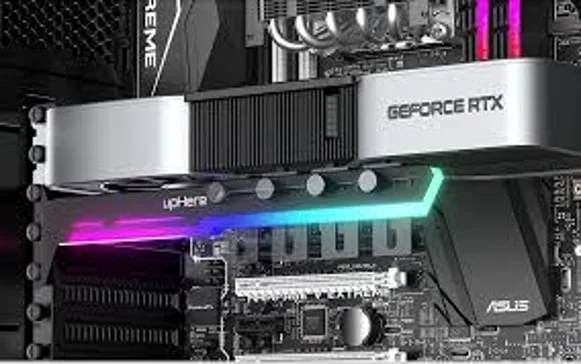
Stop GPU Sag: Why Supporting the Right Side of Your Graphics Card Protects Your PC and Wallet
Published: 04/26/2026
If you run a gaming PC with a large, heavy graphics card, supporting the card on its right-hand side (the free end away from the PCIe bracket) isn’t optional—it’s essential. Without proper support, “GPU sag” can bend the card, stress the PCIe slot and motherboard traces, cause intermittent crashes, and shorten component lifespan. A small, inexpensive support now can save you the cost of a new GPU or motherboard later.
What is GPU sag?
- The weight of modern GPUs (heatsinks, fans, backplates) pulls the card downward on the right-hand side.
- This creates leverage on the PCIe slot and solder joints, and can warp the PCB over time.
Why it matters
- Stability: Reduces micro-movements that cause black screens, driver resets, or game crashes.
- Longevity: Lowers stress on the PCIe slot, motherboard, and GPU PCB.
- Thermals and acoustics: Keeps the card level for optimal fan and shroud alignment.
- Finances: Prevents costly repairs or replacements of GPUs and motherboards.
Signs your GPU needs support
- Visible droop at the far (right) end of the card
- Fans or shroud rubbing, unusual noises, or coil whine changes when you nudge the card
- Random display dropouts, artifacts under load, or slight case panel contact
- PCIe latch feels overly tight or angled when removing the card
Best ways to support the right-hand side
- Adjustable GPU support bracket: Simple, inexpensive, height-adjustable post under the free end.
- Full-length anti-sag brace: Rail-style bracket that supports the entire edge of the card.
- Vertical GPU mount (with quality riser): Eliminates lateral sag; ensure good airflow.
- Case-integrated supports: Many modern cases include sliding or screw-in GPU supports.
- Backplate + lighter cables: A rigid backplate helps; avoid heavy cable pulls by routing and tying off.
What to avoid
- Stacking random objects (LEGO, boxes) under the card—risk of shorts and vibration.
- Over-tightening bracket pressure—can bow the PCB.
- Low-quality riser cables—can introduce signal issues; choose PCIe 4.0/5.0-rated if needed.
Quick install checklist
- Power down, unplug, and discharge static.
- Level the GPU in the slot; ensure the PCIe latch is fully engaged and bracket screws are snug.
- Place the support under the right-hand edge near the heaviest section of the heatsink.
- Tighten gently until the card is level—no bowing.
- Recheck cable strain: route PCIe cables with slack and support their weight.
- Boot and stress-test (3DMark, Unigine, a demanding game) while monitoring temps and stability.
Ongoing maintenance
- Recheck support height every 3–6 months; materials can settle.
- Dust clean fans and heatsink to keep weight-related stress and temps in check.
- Inspect motherboard standoffs and case screws for looseness after travel or moves.
Myths, busted
- “Backplates stop sag completely.” They help rigidity but rarely eliminate sag alone.
- “If it posts, it’s fine.” Long-term mechanical stress can cause delayed failures.
- “Only ultra-high-end GPUs sag.” Many mid-range triple-fan cards can sag too.
Need help? Good As New Computer Repair Specialists can assess GPU mounting, fit a proper support, optimise cable management, and test system stability the same day. Book a time that suits you: https://www.goodasnewpcrepairs.co.uk/