
5 Warning Signs Your PC is Overheating (And How to Save It Before It’s Too Late)
We’ve all been there. You’re in the middle of a frantic workday, a critical study session, or an intense gaming match, and suddenly—whirrrrrr. Your computer starts sounding like a jet engine preparing for takeoff.
In our digital age, our PCs and laptops are the unsung heroes of our daily lives. But there is a silent killer lurking in almost every home and office setup that could be slowly destroying your device from the inside out: Overheating.
At Good As New PC Repairs, we see the aftermath of overheating every single week. The good news? Catching it early can save you hundreds of pounds in replacement costs.
Here are the top 5 warning signs your computer is running too hot, and exactly what you can do about it.
1. The "Jet Engine" Fan Noise
If your computer’s internal fans are constantly spinning at maximum speed—even when you’re just browsing the web or typing a document—your system is screaming for help. Fans ramp up to combat rising internal temperatures. If they never quiet down, your hardware is under constant thermal stress.
2. Sudden, Unexplained Crashes (The Dreaded Blue Screen)
Does your PC randomly freeze, lag heavily, or completely shut down without warning? This isn’t just an annoying glitch; it’s a built-in safety mechanism. Modern processors (CPUs and GPUs) are programmed to forcefully shut themselves off when they reach dangerous temperatures to prevent permanent physical damage.
3. Sluggish Performance and Severe Lag
If your once-lightning-fast computer now feels like it’s wading through thick mud, it might be experiencing "thermal throttling." To keep from melting, your processor will intentionally slow itself down to generate less heat.
4. The Device is Hot to the Touch
Laptops are especially vulnerable here. If the underside of your laptop or the keyboard area feels uncomfortably hot, or if your desktop tower is radiating heat like a radiator, the internal airflow is severely compromised.
5. Graphical Glitches and Artifacts
For the gamers and video editors out there, keep an eye on your display. If you start seeing strange lines, pixelated blocks, or flickering colors on your screen while playing a game or rendering a video, your graphics card is likely reaching its thermal limit.
How to Cool Down Your Tech Today (Quick DIY Tips)
Before you panic, try these quick adjustments to give your computer some breathing room:
- Get off the bed/carpet: Never use your laptop on soft surfaces like blankets or carpets. They block the intake vents underneath. Use a hard, flat surface like a desk.
- Give it space: Ensure your desktop tower has at least 4–6 inches of clear space around all sides, especially the back where hot air escapes. Avoid tucking towers away in tight, enclosed desk cupboards.
- Close background tabs: Running 50 browser tabs and 10 apps at once forces your hardware to work harder, generating more heat. Close down what you aren't using.
The Ultimate Fix: Professional Thermal Management
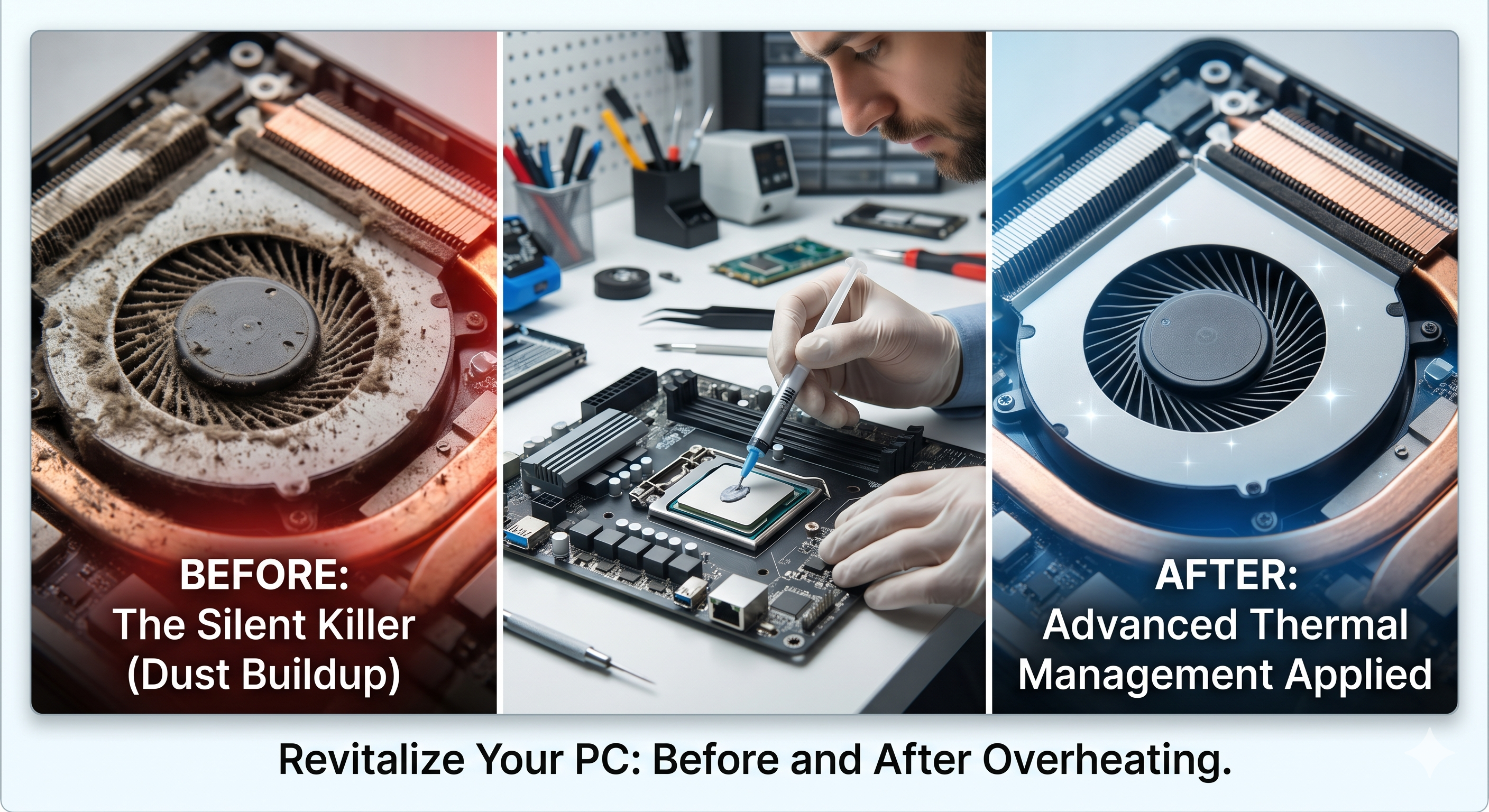
While DIY tips help day-to-day, they won't fix the core issue if your PC has built up a blanket of dust inside over the years. Just like a car needs an oil change, a computer needs regular internal maintenance.
Over time, dust acts like an insulating blanket over your delicate components, and the factory-applied thermal paste (the gel that transfers heat away from your processor) dries up and turns to stone.
That’s where we come in. At Good As New PC Repairs, we don’t just fix broken machines; we give your tech a second chance. Our premium Advanced Thermal Management service includes:
- A meticulous, safe, deep-cleaning of all internal fans and vents.
- Removal of dry, degraded factory thermal paste.
- Application of high-performance, professional-grade thermal paste to drop your temperatures instantly.
Whether you're a student in Portswood, a remote worker in Millbrook, or a gamer anywhere in Southampton, don't wait for your PC to stop completely.
💡 Bring it in for a Free Diagnostic!
We operate on a transparent, hassle-free basis. Pop into our professional workshop at 30 Walnut Grove, Millbrook (walk-ins are always welcome, no complex bookings required!) or call Steve and the team today on 07706049468. Let's make your PC feel Good As New again!